Almost nobody is using the new App Store header in iOS 27, and that is exactly why you should.
At WWDC 2026, Apple introduced two new visual placements on the App Store. Both give you more control over the first few seconds someone spends with your app, and both are available now on iOS 27 and iPadOS 27.
What changed
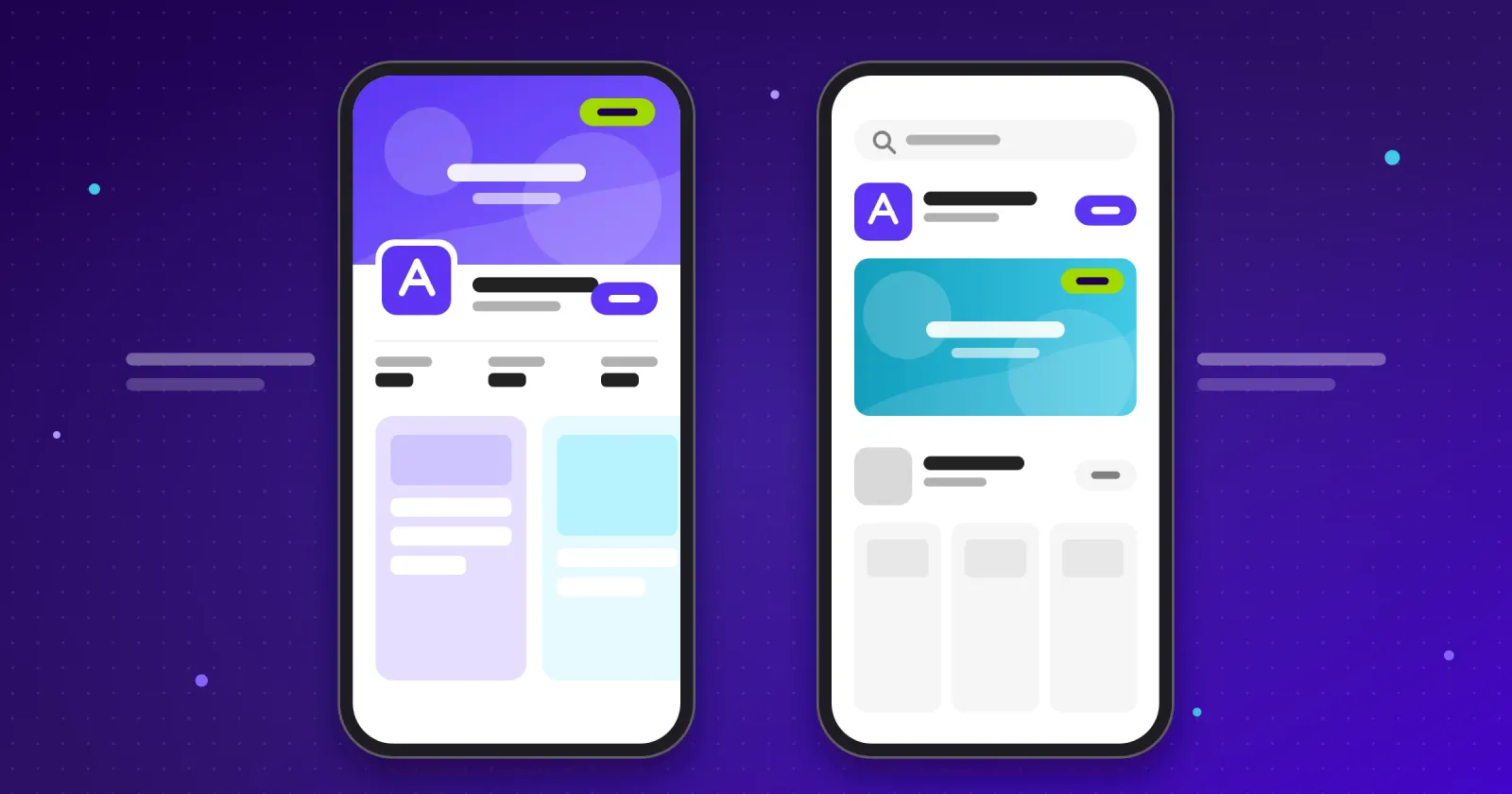
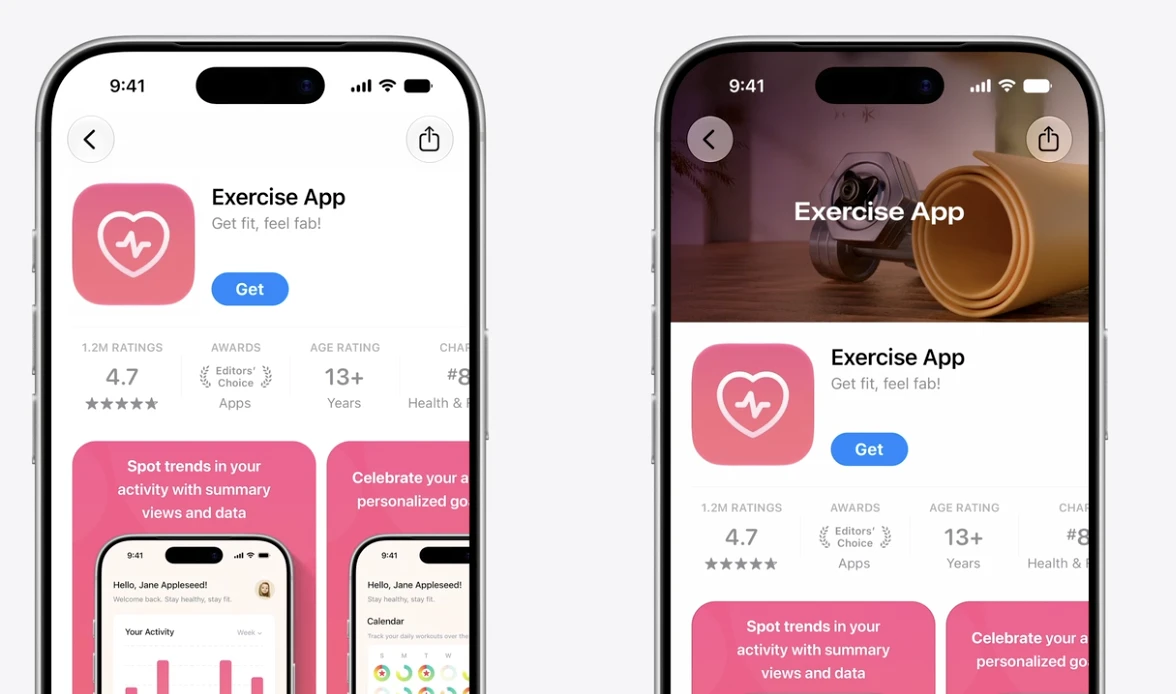
Before iOS 27, the top of a product page showed your icon, your app name, and the download button. Your screenshots and preview videos sat below that. Search results worked the same way, with a row of vertical screenshots under each app.
Now there are two new places to put your brand front and center.
1. The Product Page Header
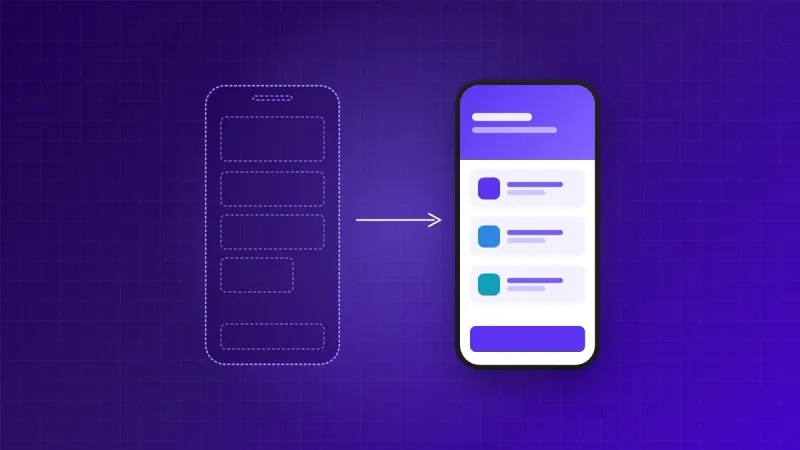
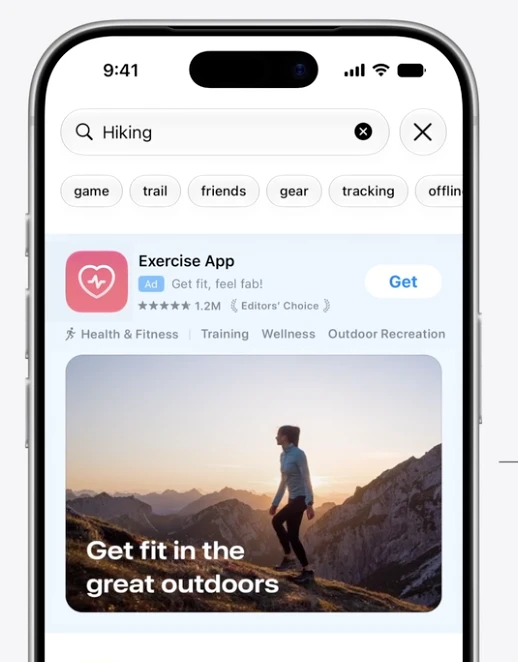
You can add an image or a video to the top of your product page. It is the first visual element people see when they land on your app, and it does not have to be a screenshot. You can use it to show your brand, your core value, or a short animation of the app in use.
Apple designed the header, icon, and screenshots to work together. The header sets the tone, and the screenshots fill in the details.
2. Search Result Visuals
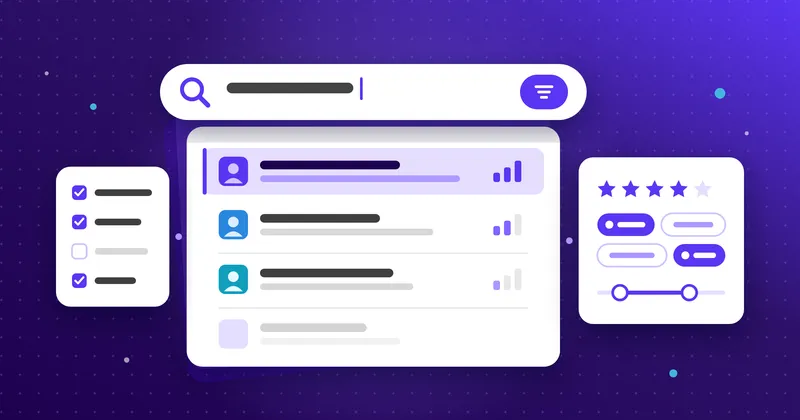
Instead of the default screenshots, you can show a single full-width image or video in App Store search results. For years, apps tried to fake this by designing screenshots that connected into one long banner. Apple has now made it an official feature.
A strong search visual helps your app stand out while people scroll, which can lead to more taps through to your product page.
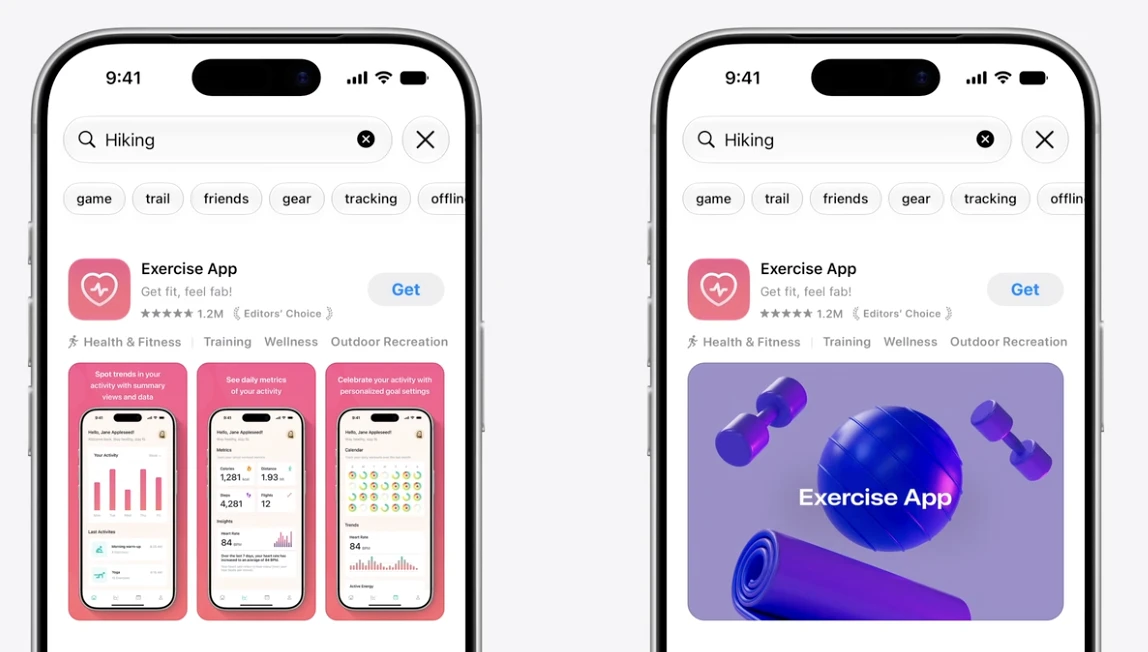
The same assets work across placements
Once you create these images and videos, you can reuse them in several places:
- Product Page Header
- Search results
- Apple Ads, including the Today tab and search placements
- Custom Product Pages, which let you show different visuals to different audiences or for different search keywords
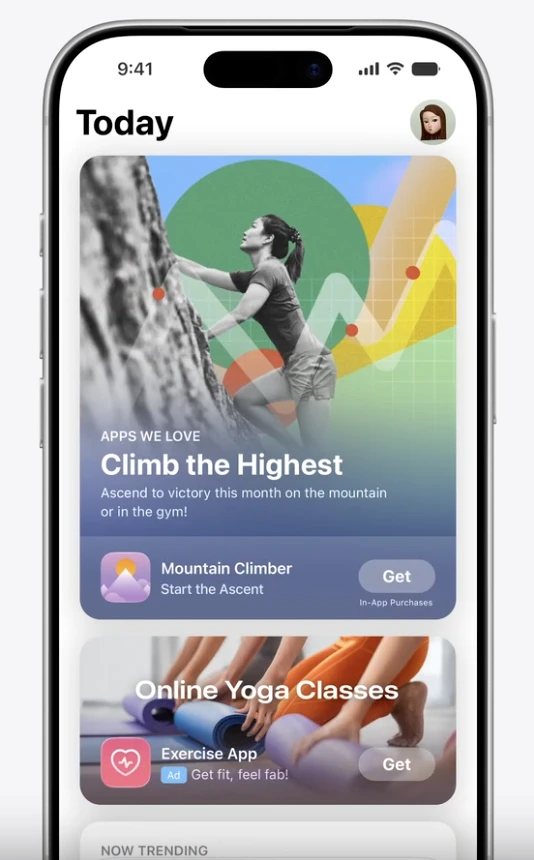
Apple also introduced an Asset Library in App Store Connect. You upload your creative assets there and submit them for review. Once an asset is approved, you can swap it into your header or search results at any time without submitting a new version of your app. In Apple's example, a hiking app replaced a summer header with a winter one in a few clicks.
There is also a new Preview tool that shows how your page will look on iPhone and iPad, across orientations and languages, before anything goes live.
Why this matters for customer acquisition
Every user you acquire lands on your product page before they download. That is true whether they came from a paid ad, a social post, an email, a referral, or App Store search.
Because of that, your product page works like a landing page that every channel shares. If it converts poorly, it leaks users from every campaign you run. If you improve it, you lift every channel at once without spending more on traffic.
The new header and search visuals are the biggest change to that page in years, and adoption is still low. That makes it a rare chance to stand out before your competitors catch up.
There is also speculation that Apple will favor apps that adopt these placements in rankings and Today tab features. Apple has not confirmed this, so I would not count on it. Still, apps that adopt new App Store features early tend to benefit when Apple is actively promoting them.
How to get started
This is not a large project. Here is the process we follow:
- Decide on the message. Pick the one thing you want people to understand about your app in the first second.
- Create the asset. A short motion video usually works best. We have been building these with Claude's motion design tools in about an hour, then iterating on the result.
- Upload it to the Asset Library in App Store Connect and submit it for review.
- Preview your page on iPhone and iPad before it goes live.
- Test it. Use Product Page Optimization in App Store Connect to compare different visuals and see which one converts better.
Keep in mind that these placements only appear for users on iOS 27 or iPadOS 27. Users on older versions will continue to see your standard product page.
Need help?
At Rapptr Labs, we help teams with live apps improve the experiences that drive growth, including App Store presence. If you want a second set of eyes on your product page or help creating header and search assets, reach out to us at rapptrlabs.com. We are happy to take a look.